
Kaiteki TV Free Trial Guide in English – How to Sign Up

Kaiteki TV Free Trial Guide in English
How to sign up, confirm your email, and start watching—even if you cannot read Japanese.
Want to try KaitekiTV but feel unsure about its Japanese registration page? Follow this English guide one step at a time. We explain where to click, what to enter, and what to do when your registration email arrives.
7-day free trial • No credit card required • No automatic charge after the trial
The next website is in Japanese. That is expected. You can translate its pages in your browser or use the field guide below.
Opens the official KaitekiTV website in a new tab. Keep this guide open so you can return to it.
On this page: Before you start · Open the trial page · Translate the website · Fill in the form · Check your email · Install the app · Choose a paid plan · Troubleshooting · FAQs
Before you start
Have these ready:
- Your name and an email address you can open now.
- Your actual region and country of residence.
- A phone, tablet, or supported viewing device with an internet connection.
KaitekiTV is intended for viewers outside Japan. The registration form says viewing from inside Japan is unavailable.
You can register using a computer browser. Watching is a separate step and requires a supported app/device. KaitekiTV currently lists iPhone, iPad, Android phones/tablets, and Apple silicon Macs as supported. Windows PCs and Intel Macs are not supported. For a TV, check your exact device model first: some Fire TV Stick models work and others do not.
Check KaitekiTV’s supported devices
Language note: translating the registration website helps you sign up. It does not translate the television programmes, and it does not automatically translate the app.
Step 1: Open the official KaitekiTV trial page
- Select Open KaitekiTV — Start My Free Trial below.
- A new browser tab opens. Leave this English guide open in the first tab.
- On the KaitekiTV website, look for the pink free-trial button near the top. Its Japanese text begins 1週間の無料体験を試す. This means Try the 1-week free trial.
- Select that button to open the registration form.
If you already see the registration form, continue to Step 2. You do not need to go back.
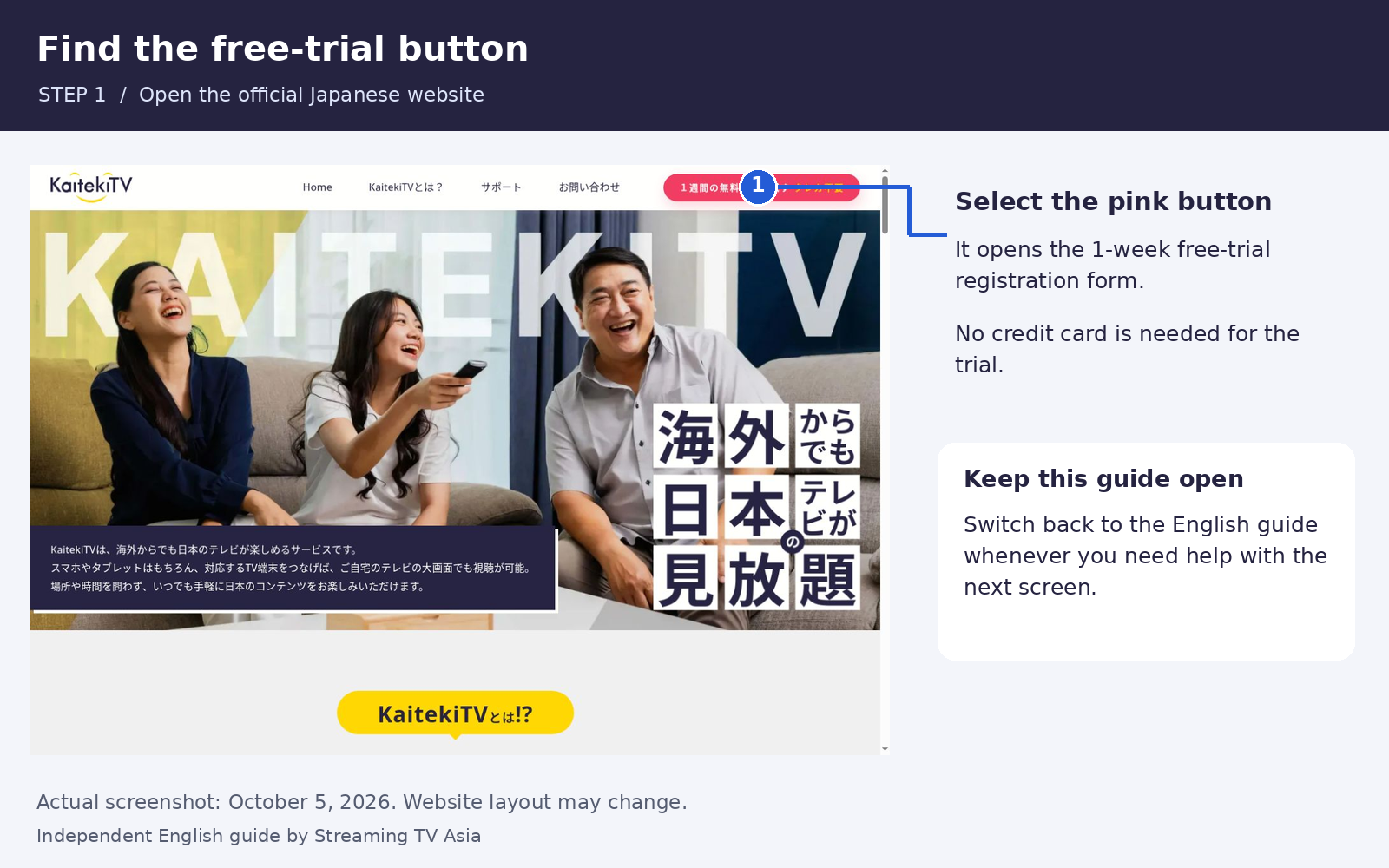
On the Japanese landing page, select the pink button to open the free-trial form. Screenshot captured October 5,
2026; layout may change.
Switching between tabs: On a computer, select the tab at the top of your browser. On a phone, tap the browser’s tab button—often two overlapping squares or a square showing a number—then choose this guide or the KaitekiTV page.
Step 2: Translate the Japanese website into English
Choose the instructions for the browser you are using. You do not need a translation extension for the methods below. Translate the landing page and, if necessary, translate the registration page again after it opens.
Chrome on a Windows computer or Mac
- With the Japanese page open in Chrome, click the Translate icon on the right side of the address bar. The address bar is the box showing the website address.
- Choose English.
- If you cannot find the icon, right-click an empty part of the page and choose Translate to English. On a Mac trackpad, click with two fingers to open that menu.
- If a different language is offered, use the translation menu to choose English.
Chrome on an Android phone or tablet
- Open the KaitekiTV page in Chrome.
- If a translation message appears, select English.
- Otherwise, tap the three dots menu beside the address bar, then Translate.
- Choose English if prompted.
Safari on an iPhone or iPad
- Open the KaitekiTV page in Safari.
- Tap the Page Menu button beside the website address. Its appearance varies by iOS version; older versions may show aA.
- Select Translate to English, if available.
- If Safari asks you to enable translation, follow its on-screen prompt.
If translation is unavailable on your device, use the Japanese-to-English field table in Step 3. You can still complete the form without translating the whole page.
Microsoft Edge on a computer
- Open the Japanese page in Edge.
- When the translation box appears, choose English, then Translate.
- If the box does not appear, select the Translate icon in the address bar and choose English.
Firefox on a computer
- Open the Japanese page in Firefox.
- Select the translation icon in the toolbar, or open the browser menu and choose Translate page.
- If needed, set the original language to Japanese and the translation language to English, then select Translate.
- If Japanese translation is unavailable in your version, use the field table below or an up-to-date Chrome browser.
Some Japanese text is part of an image, and some selection menus may stay in Japanese. Browser translation does not always translate these. Use the original Japanese labels below to find the right field.
Step 3: Fill in the KaitekiTV registration form
The form’s heading means 1-week free-trial application form. A small pink 必須 label means Required: you must complete that field.
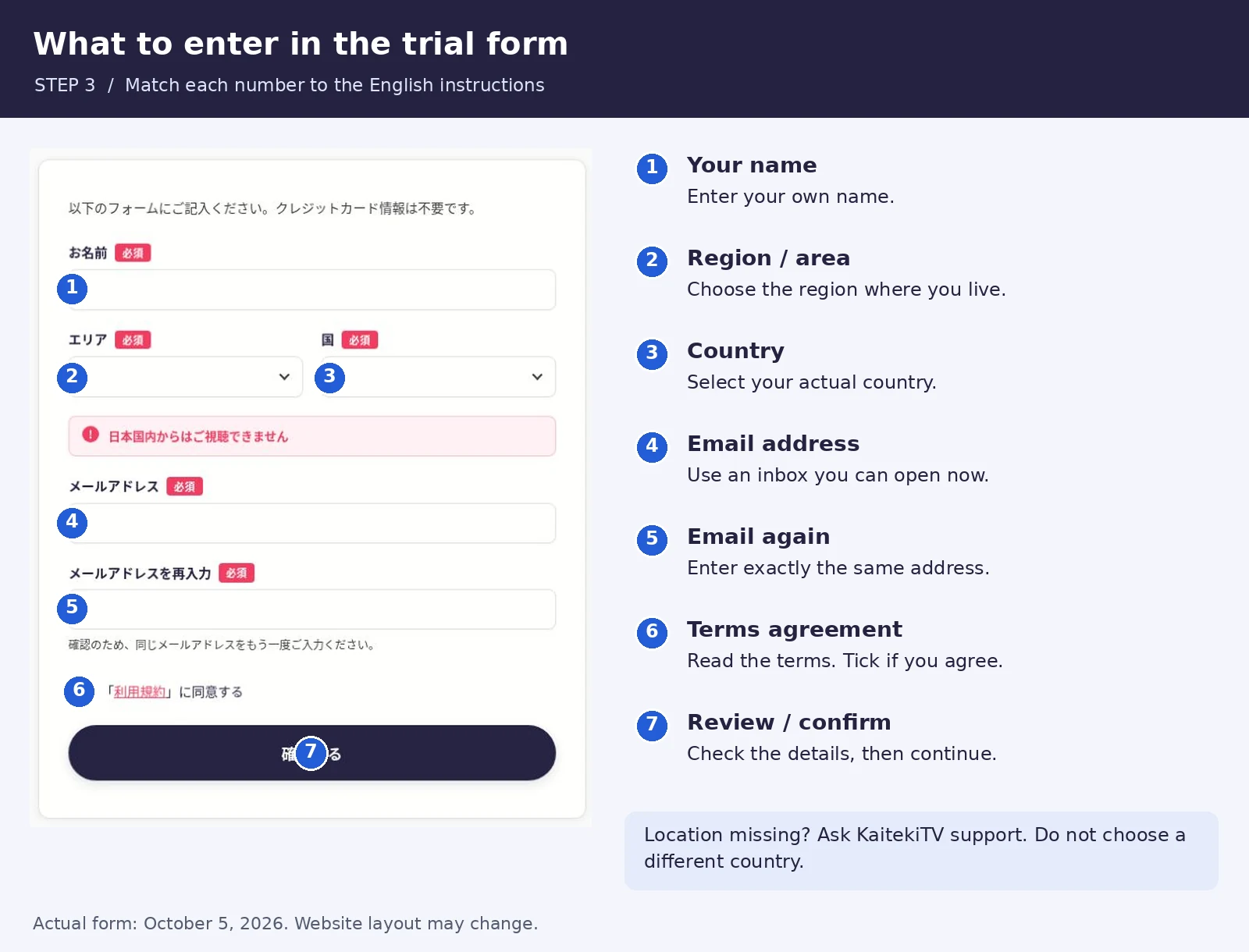
English field guide beside the actual KaitekiTV registration form. Screenshot captured October 5, 2026.
| Japanese label | English meaning | What to do |
| お名前 | Your name | Enter your own name. |
| エリア | Region / area | Select the region that matches |
| 国 | Country | Select your actual country from the available list. |
| メールアドレス | Email address | Enter an email address you can check now. |
| メールアドレスを再入力 | Enter your email again | Type the same email address a second time. |
| 利用規約 | Terms of use | Open and read the terms. Translate them if needed. |
| 「利用規約」に同意する | I agree to the terms | Tick the box if you agree. |
| 確認する | Review / confirm | Select this button after completing the form. |
Choose your region and country
Select the region first, then the country. A selection window may open when you tap a field. Choose the appropriate option in that window.
If the region menu stays in Japanese, these labels may help:
| Japanese | English |
| アジア | Asia |
| ヨーロッパ | Europe |
| 南アメリカ | South America |
| オセアニア | Oceania |
| アフリカ | Africa |
| アメリカ(東海岸) | America / East Coast |
| アメリカ(西海岸) | America / West Coast |
If your country is missing or you are unsure which region applies, ask KaitekiTV support before continuing. Do not choose a different country simply to get past the form.
Check your email address carefully
The two email fields must match. Check for typing mistakes and extra spaces. Your registration messages will go to this address.
Read the terms and review your application
- Open the terms link and read it. Use browser translation if needed.
- Return to the form and tick the agreement box if you agree.
- Select 確認する to review or confirm your details.
- If another review screen appears, check your information and follow the final confirmation prompt.
- Look for the completion message, then check your email.
Forms can change. If your version also asks for a telephone number or city, enter your actual details. Those fields were not visible in the form checked on October 5, 2026.
Step 4: Check your email and finish registration
Open the inbox for the email address you used. Look for a new message from KaitekiTV. Check your Spam or Junk folder too.
If the message contains 本登録を完了させる, it means Complete registration. Select that link or button to finish verifying your email. Keep the browser open until you see the next instruction.
Keep the email containing your Kaiteki ID and password. You will need them to sign in to the app. Check both the first message and any follow-up message: the official guides describe the order differently, so do not assume your login details must arrive in a separate email.
If nothing arrives immediately, wait up to about 10 minutes, then check Spam/Junk again. If it is still missing, see the troubleshooting section below.
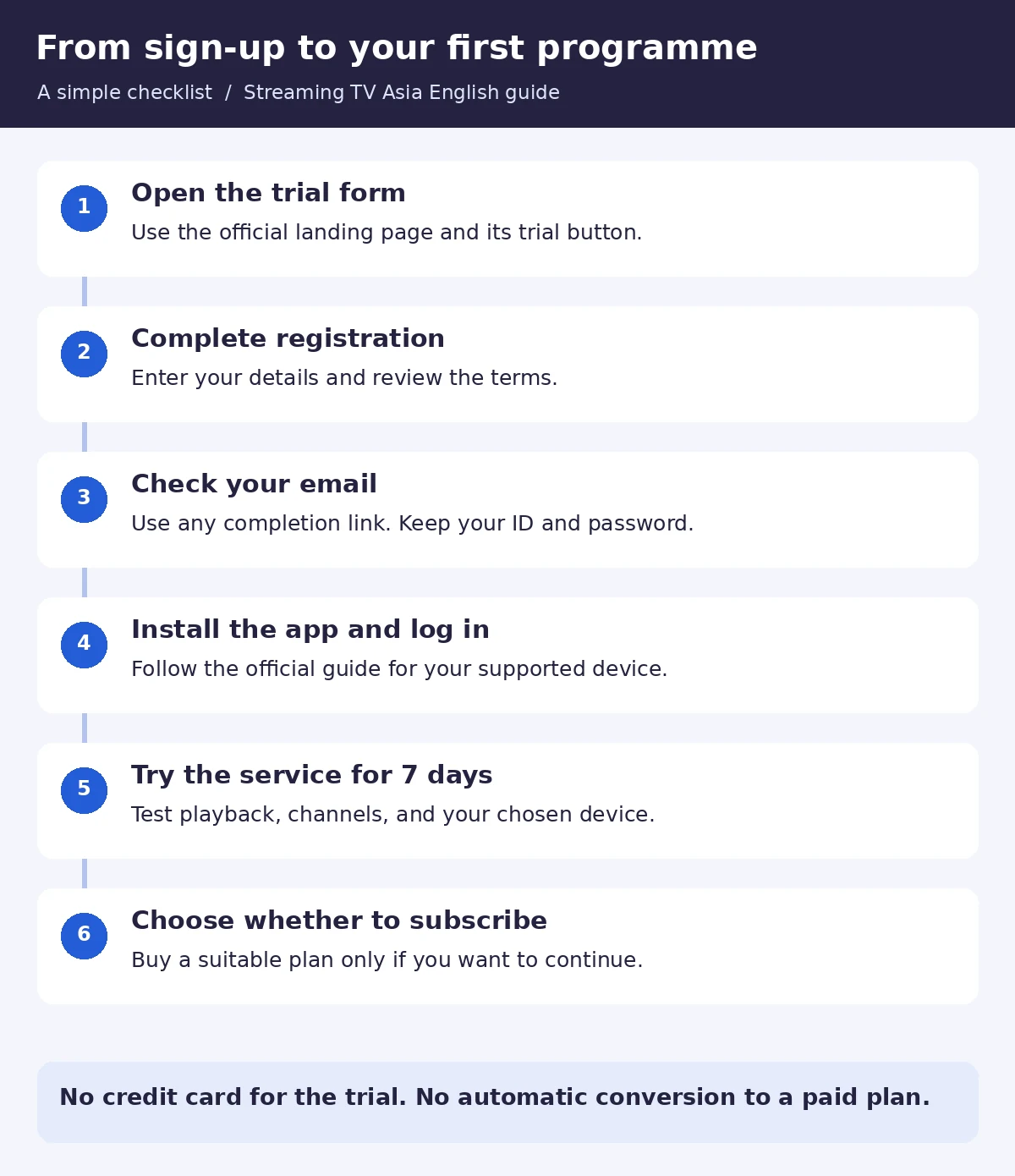
Your next steps: register, check email, install the app, sign in, and test the service before deciding whether to purchase. This is an instructional diagram, not an email screenshot.
Step 5: Install the app and sign in
iPhone or iPad
Use the app link provided after registration or in KaitekiTV’s official iPhone/iPad setup guide. The guide names the app Kaiteki-JP.
- Follow the official app link to the App Store and install the app.
- Open the app. If it opens on a radio screen, tap the person/profile icon near the top right.
- Enter the Kaiteki ID and password from your email.
- Tap ログイン, meaning Log in.
Use your Kaiteki ID as the username. Do not assume your email address is the username. You already registered on the website, so use the login screen rather than creating another account inside the app.
Official iPhone and iPad setup guide
Android phone or tablet
Use the Google Play link in KaitekiTV’s official Android guide. Install the app, open its sign-in screen, and use the ID and password from your registration email.
Watching on your television
Check your exact TV device model first, then follow KaitekiTV’s official TV-device installation guide. TV setup can involve more steps than phone setup. If you have a supported phone or tablet, you can start testing there while you arrange TV setup.
Official TV-device setup guide
Step 6: Try the service before choosing a paid plan
During your trial, test the things that matter to you:
- Can you find the channels and programmes you want?
- Does playback work well on your usual internet connection?
- Can you use the app comfortably on your chosen device?
- Are the sound, picture, and controls suitable for you?
Try watching at the times you normally use the service. If something does not work, ask support while your trial is still active.
How to subscribe after the free trial
If you want to continue, open KaitekiTV on your viewing device and follow its purchase instructions. Choose a plan for your device and channel needs, review the price and duration, and confirm the payment details before purchasing.
These Japanese words may help on a plan or payment screen:
| Japanese | English |
| 料金プラン | Pricing plans |
| 1ヶ月払い | Payment for one month |
| 年払い | Annual payment |
| 購入 | Purchase |
| 支払い / お支払い | Payment |
This guide does not promise the same checkout layout on every device. Follow the current instructions in your app and contact KaitekiTV if you need help before paying.
Current plan prices
| Plan | Devices | Channels | 1 Month | 1 Year |
| Mobile Basic | Smartphone / tablet | 22 | US$19.90 | US$199 |
| Mobile Premium | Smartphone / tablet | 50 | US$29.90 | US$299 |
| Combo Basic | Smartphone / tablet + supported TV device | 22 | US$29.90 | US$299 |
| Combo Premium | Smartphone / tablet + supported TV device | 50 | US$39.90 | US$399 |
Prices checked October 5, 2026. Confirm the current price, device support, and final payment amount on KaitekiTV before buying.
What if you do not want to continue?
KaitekiTV says its trial ends automatically. It does not automatically become a paid subscription, and no cancellation procedure is required if you do not purchase a plan.
Having trouble? Try these checks
I cannot translate the page
Use the Japanese-to-English tables above. If you opened the link inside another app, open it in your usual browser instead. Menu names can vary with browser version and language settings.
A list is empty or my country is missing
Check that you selected a region first. If a country list still does not appear, ask KaitekiTV support. Do not use an incorrect location to finish the form.
The form will not continue
Check every required field, make sure both email entries match, and check the terms agreement box if you agree. Read any error message beside a field; use browser translation to understand it.
I did not receive the email
Check Spam/Junk, wait about 10 minutes, and search your inbox for “Kaiteki”. If nothing arrives, contact support and explain when you applied and which email address you used. Do not send your password.
My login does not work
Check your Kaiteki ID and password against the registration email. Look for accidental spaces when copying. If your email contains a registration-completion link, make sure you have used it.
I need help from KaitekiTV
Explain which device you use and what happens when you try the step. A screenshot of the error may help; hide your password and personal information. This English guide does not mean KaitekiTV guarantees English-language customer support.
Kaiteki TV free trial: frequently asked questions
Can I register if I cannot read Japanese?
You can use browser translation and this English field guide to understand the registration page. If an instruction remains unclear, ask KaitekiTV before continuing.
Is the free trial seven days?
KaitekiTV currently advertises a one-week free trial. Follow your account information for the actual trial expiry date.
Do I need a credit card for the trial?
No. The current trial form says credit card information is not required.
Will I be charged automatically?
KaitekiTV says the trial ends automatically and a paid plan begins only if you choose to purchase one.
Does this guide make the programmes English?
No. It explains the registration process in English. Website translation does not translate the streamed programmes or add English subtitles.
Can I watch in Japan?
The current registration form says viewing from inside Japan is unavailable.
Can I register on a computer and watch on a phone?
You can complete the web registration on a computer and use your account details on a supported viewing device. Check the device list before signing up.
Is Streaming TV Asia the official KaitekiTV website?
No. Streaming TV Asia publishes this independent English guide and uses affiliate links. Registration, account access, and payments are handled by KaitekiTV.
Ready to start your KaitekiTV free trial?
Keep this guide open, select the button below, and follow Step 1. When you reach the Japanese form, return to the field table whenever you need help.
Official Japanese website • Opens in a new tab • No credit card needed for the trial
Want to compare the service first? Read our KaitekiTV overview, features, and pricing
Guide checked October 5, 2026. Website layouts, app instructions, and prices can change.